Search MilitaryCAC.com:

Site Map

Please Bookmark and Share this website with your friends and colleagues


           MilitaryCAC.com logo

The Definitive Source for Everything CAC

  CAC (Common Access Card) help for your Personal Mac Computer

Be notified of
page updates

It's private

Powered by:
ChangeDetection

Verified and secure at:  https://MilitaryCAC.com


APPLE MACINTOSH COMPUTER SUPPORT PAGE for LEOPARD 10.5.8

 
Apple Leopard logo
You may be able to use your CAC with your [Leopard (aka 10.5.8)] Apple computer

Download / Save this page as a single / printable PDF


Lion Apple Lion logo (10.7.x) users, please utilize the Lion support page

Snow Leopard Apple Snow Leopard logo (10.6.x) users, please utilize the Snow Leopard support page

TigerApple Tiger logo(10.4.x) users, please utilize the Tiger support page


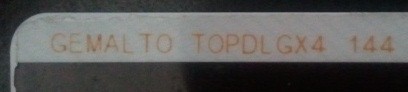
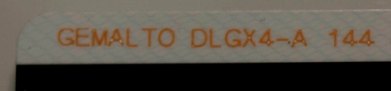
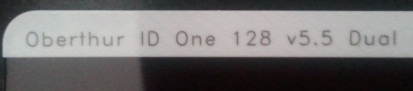
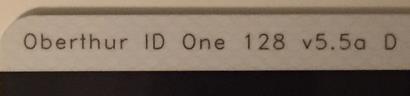
If your CAC does not work, you may have received one of the newer PIV II CAC's.  You can verify by looking on the back above the black magnetic strip for either of these:  "Gemalto TOP DL GX4 144" (see below), "Oberthur ID One 128 v5.5 Dual" (see below), or "Oberthur ID One V5.2a Dual" (see below) 


Gemalto 144 CAC image Oberthur 5.5 CAC image


Gemalto TOP DL GX4 144 cardholders should download the CAC-NG (BETA v0.96) TOKEND file from Mac OS FORGE.org (there is NO support provided for this open source software), restart your computer, then proceed with the instructions below.  If it still doesn't work, consider purchasing and installing PKard.


Oberthur ID One 128 v5.5 Dual & 'some' 5.2a cardholders may need to purchase and install PKard or Charismathics Smart Security Interface (CSSI-PIV) as these are the only way we've been able to find to support your particular CAC. 


You may also take the risk of using the [no support] (open source) OpenSC or CACkey programs.


You will have to install Windows in a virtual environment to be able to use Lotus Forms and ApproveIt.  NOTE:  Your computer must have an Intel processor.


An older version of PureEdge [with a few tweaks] is available here for your Mac.  So, IF you only need to complete a form (and NOT sign it) give it a try.


IF the lack of Lotus Forms and ApproveIt for Mac "bothers" you, I recommend you contact the Army Publishing Directorate and let them know your feelings:  703-692-1306 Monday - Friday 0700-1700 EST, Webform, or apdfcmp@conus.army.mil


We're seeing a lower success rate of Leopard computers working with the newer PIV II CACS, it seems to work fine with the older CACs. 


A 100% success rate fix for Leopard users with the Gemalto TOP DL GX4 144 CAC [and Intel Chip] is to upgrade your computer to Snow Leopard.  However, if you have a PPC chip, your only option is to purchase PKard, OR it may be time for a new computer.  :)

For users of 10.5 with a MobileMe account, now is the perfect opportunity to upgrade to 10.6.8 (Snow Leopard) for FREE!!  Offer ends June 15, 2012


PKard image

PKard is the only solution (with support) for all CACs, and specifically if you have an Oberthur ID One 128 v5.5 Dual or V5.2a Dual CAC.
You can purchase from Thursby Software or TX Systems
PKard demo


NOTE:  PKard also adds websites to your keychain automatically, so you don't have to enter them manually.

Charismathics Smart Security Interface (CSSI-PIV) is another program you can purchase

You may also take the risk of using the [no support] (open source) OpenSC or CACkey programs.

If you have installed one of these programs and want to remove it, here's how


Article on how to utilize Windows on your Mac from Online Tech Tips.com


How to make the web server "think" your using Internet Explorer


Information on why your CAC may not work with Safari after updating



Firefox logo


How to configure your Firefox on your Mac  (using Cool key)


You can download the dod_configuration-1.3.3.xpi Firefox installation file from Forge.mil (but you may not need it)


The following information is provided for your situational awareness while setting up your CAC on your Mac.  It is updated as additional information is available and your input is appreciated for solutions not outlined here.  Installation instructions can be found below.

ActivClient is a middleware program used by the DoD to facilitate the communication between your Windows computer and your Common Access Card.  It was offered for the “Tiger” release (Mac OS X 10.4.x) and is not compatible with Leopard (the current release of Mac OS X (10.5.8)).  The program was available for purchase through the manufacturer, and is not available for download from DoD.  The use of this program is not supported here for Apple operating systems, as it is not required and won't work with Leopard (10.5.x).

Lotus Forms is currently only available for Windows.  You will have to install Windows in a virtual environment or use Apple's native Boot Camp to be able to use Lotus Forms and ApproveIt.  NOTE:  Your computer must have an Intel processor.

An older version of PureEdge [with a few tweaks] is available here for Macs with Intel processors only.  So, IF you only need to complete a form (and NOT sign it) give it a try.

Windows on your Mac (You MUST have an Intel processor, it will NOT work with a PPC processor): While you have made a conscious decision to “be a Mac,” the Government has not, and therefore the easiest solution for some problems, such as:  Digitally signing forms with Lotus Forms and ApproveIt, some websites (including digitally signing / encrypting emails in OWA), is to use Windows through a Virtual Machine, such as Parallels Desktop (PDF), VMware Fusion, (Parallels vs. VMware comparison), or VirtualBox, or through Apple’s native Boot Camp.  This will require you to have a legal copy of Microsoft Windows.  With these programs, you can install the ActivClient, Lotus Forms, and ApproveIt software and also utilize all the DoD tools from your Mac.  The benefit of the Virtual Machines over Boot Camp is that it will allow you to run Windows as an additional program (without restarting your computer) and keep OS X running the entire time. 


NOTE:  If your your CAC reader is not being recognized by your virtual Windows, follow this guidance: 
VMware Fusion From the the menu bar, select Virtual Machine, then USB.  Find your CAC reader and select it.
Parallels Desktop - (In Coherent mode):  Click the red parallel lines in the menu bar, Select Devices, USB, find your CAC reader and select it.
VirtualBox:  Click the USB icon in the bottom of your screen, select your CAC reader
Parallel Desktop - (Not in Coherent mode):  Simply plug your reader into the computer and select whether you want to use it in Mac or Windows


DTS (Defense Travel System) uses a Java web applet and should allow you to use DTS from your Mac.

NOTE:  If you see a blank page after successfully logging into DTS trying to navigate to your authorizations or vouchers, Click the word Safari, Select Security, uncheck the box for Block pop-up windows. 

NOTE for 64 bit Macs You may need to run Safari in 32 bit mode vs. 64 bit.  Here's how:  Go to Applications in Finder, right click get info on Safari.  Check the box Open in 32bit mode, then launch Safari


DCO (Defense Connect Online) did NOT work on my 10.5.8 (Leopard) computer.


CAC Readers:  With a variety of CAC readers available today there are also a variety of issues.  The SCR series of CAC readers work very well.  The SCR-331 reader may need a Firmware Update.  See several different models of USB CAC readers here.  You will see a small note on some of the readers to show you how to make them compatible with your Mac.  Here is a web page that lists all known CAC readers and whether they are supported, should work, or unsupported with the Mac OS'.


Outlook Web Access / App (OWA): The use of OWA on Mac currently has a known issue with time outs.  Beware that when using OWA on your Mac that if you are inactive on the primary window, e.g. the inbox, while replying to an email, your browser may time out.  On a Windows computer the ActivClient software  maintains communications with the server and re-requests validation of your credentials.  On a Mac this is not so, Safari will respond to a direct request for validation of your credentials, however it will not re-request that you verify as the server requires.  Be sure that prior to selecting the Send button that you copy your work to the clipboard as you will most likely have to restart Safari and log back in.  You also will not be able to digitally sign / encrypt / decrypt emails since the S/MIME software doesn't exist for a Mac.


Internet Explorer Emulation:  If you visit a website with your Mac that states it can only be accessed via Internet Explorer, or some web pages simply won't work while using your CAC with Safari, please try this:  Make sure your Mac is updated (like steps 1 & 2 below).  Open Safari, Click on the word Safari (in the bar at the top), select Preferences..., Advanced, click the Show Develop menu in menu bar box.  Close Advanced screen.  Now when you need to emulate IE, click on the word Develop (at the top), click User Agent, then select Internet Explorer 7 or 8

--Information provided by the Air Force IMA JAGs.


Air Force Users look here for some helpful information


Navy Users look here for some specific information


 Setting up your CAC for use on your Leopard (10.5.8) Mac:

Downloadable PDF of what you see below

Step 1: Update your system.  (10.5.8 is the last version of Leopard)

Apple Software update image


Step 2: Plug in your CAC Reader to a USB Port

Step 3: Click the Apple Icon in the upper left corner of your desktop and select "About This Mac"

  Apple About this Mac image


Step 4: Click the "More Info" Button in the window that pops up. (This opens System Profiler)

  Leopard About this Mac image


Step 5: Within the "Hardware" Category select "USB." On the right side of the screen the window will display all hardware plugged into the USB ports on your Mac. You should see “Smart Card Reader.”  If the Smart Card reader is present, it is installed on your system, and no further hardware changes are required, e.g. additional drivers / Firmware upgrades.  You can now Quit System Profiler.  NOTE:  Please look at the Version:  If you are using an SCR-331 Reader with version 5.25, it should work fine.  If it is below 5.25, please update your firmware.

  Apple showing USB image


Step 6: Click: Go (in the taskbar at the top of the screen), Utilities, Keychain Access. 

NOTE:  If you don't see Go, click the finder Mac Finder imageicon  in your Dock. Click Applications (under Places), Utilities, Keychain Access 


Step 7: Insert your CAC into the CAC Reader.  In the upper left portion of the Keychain Access window, under "Keychains" your CAC should show up (CAC...XXXX-XXXX-XXXX-XXXX-XXXX), click it. In the right side you will see the certificates that are on your CAC. (If your CAC does not appear remove it from the reader, unplug the CAC Reader, quit, and re-open Keychains Access, plug in the Card Reader, and insert your CAC)  

Apple Keychain access image


Step 8: Double Click the "Padlock" icon in the upper left corner of the program window, you will be prompted for your CAC PIN.  Enter your CAC PIN and select OK to unlock your CAC.

NOTE:  If your padlock will not unlock, and you may have one of the new CACs, read above or your CAC may be blocked.

Step 9: Select the desired certificate, which will show as:  LASTNAME.FIRSTNAME.MIDDLENAME.NUMBERS on the right side of the screen.  Right Click your mouse and select "New Identity Preference"  If you don't have a two button mouse, hold the <ctrl> key and click your mouse to get the "New Identity Preference" option.

NOTE:  You should see 3 or 4 certificates, if you see less than 3, you will need a new CAC.

Step 10: Enter the URL / website (from the links below) for the website you wish to access using your CAC, select the appropriate certificate and click “Add”:  

Step 11: Quit Keychain Access (and Applications (if it is still open)), remove your CAC from the reader, and re-insert it.  Open Safari and begin navigating to your CAC enabled website(s).  


Examples of URLs to add to your Keychain Access

More OWA links are located on the OWA page

NOTE:  The slash at the end of the URL does make a difference

Army:

-  AKO: https://akocac.us.army.mil/  (DOD CA-XX)

-  AKO Webmail: https://wmcac.us.army.mil/  (DOD CA-XX)

-  Fort Gordon OWA (NASE Email Access): https://rw3.army.mil/EXCHANGE (EMAIL CA-XX)

-  Army Reserve OWA (USAR Email Access): https://owa.usar.army.mil (EMAIL CA-XX)

-  US Army garrison Hawaii:  https://owa.hawaii.army.mil/EXCHANGE (EMAIL CA-XX)

-  Center for Army Lessons Learned (CALL): https://call3.leavenworth.army.mil (DOD CA-XX)

-  CONUS AMEDD Exchange OWA: https://medmail-conus.amedd.army.mil/Exchange (EMAIL CA-XX)

-  National Guard Knowledge Online: https://gkoportal.ngb.army.mil (DOD CA-XX)

-  NORAD NORTHCOM CAC Registration Site: https://registration.noradnorthcom.mil/ (DOD CA-XX)

-  NORAD NORTHCOM External Access Site: https://operations.noradnorthcom.mil (DOD CA-XX)

-  Soldier Survey Site: https://fcportal.forscom.army.mil/ (EMAIL CA-XX)


More OWA links are located on the OWA page

Navy: 

-  Navy Knowledge Online (1 of 2): https://cac01.nko.navy.mil  (DOD CA-XX)

-  Navy Knowledge Online (2 of 2): https://cac01.nko.navy.mil:443/app1/index2.jsp (DOD CA-XX)

-  Navy Knowledge Online (E-Learning):  https://ile-deers.nko.navy.mil/ELIAAS/logon/RedirectToSystem.jsf (EMAIL CA-XX) Also know, this will work if you right-click the "e-Learning" banner and open in a separate tab or window. The Cert and banner click were tested on Google Chrome, and Safari with no problems.

Navy Webmail: https://webmail.nmci.navy.mil  (DOD CA-XX)

-  Reserve Portal: https://private.navyreserve.navy.mil/  (EMAIL CA-XX)

-  NADSUSEA (Navy East OWA): https://webmail.east.nmci.navy.mil (EMAIL CA-XX)

-  NADSUSWE (Navy West OWA): https://webmail.west.nmci.navy.mil (EMAIL CA-XX)

-  NADSUSEA NCIS COI (Navy NCIS OWA): https://webmail.ncis.nmci.navy.mil (EMAIL CA-XX)

-  NMCI-ISF (Navy ISF OWA): https://webmail.isf.nmci.navy.mil (EMAIL CA-XX)

-  PADS (Navy PADS OWA): https://webmail.pacom.mil (EMAIL CA-XX)

-  PADS (Navy PACOM SMR Users OWA): https://webmail.exceptions.pacom.mil (EMAIL CA-XX)

-  IATS NMCI Webmail (1 of 3): https://iats.nmci.navy.mil (EMAIL CA-XX)

-  IATS NMCI Webmail (2 of 3): https://iats.nmci.navy.mil/ (EMAIL CA-XX)

-  IATS NMCI Webmail (3 of 3): https://iats.nmci.navy.mil/cas (EMAIL CA-XX)

-  Marine Corps Webmail: https://webmail.us.nmci.usmc.mil/Exchange (EMAIL CA-XX)

-  Navy InfoSec: https://infosec.navy.mil (DOD CA-XX)

-  Navy Medical (1 of 3): www.med.navy.mil:80 (DOD CA-XX)

-  Navy Medical (2 of 3): https://nmo.med.navy.mil/ (DOD CA-XX)

-  Navy Medical (3 of 3): https://nmo.med.navy.mil/pki/default.cfm (DOD CA-XX)

-  JTF-GNO: https://www.jtfgno.mil (EMAIL CA-XX)

-  NRRM: https://nrrm.navyreserve.navy.mil/Nrrm.Web/Modules/Shell/Shell.aspx  (EMAIL CA-XX)

-  BUPERS: https://pki.bol.navy.mil/ (DOD CA-XX)

-  NSIPS (1 of 2); https://nsips.nmci.navy.mil (DOD CA-XX)

-  NSIPS (2 of 2): https://nsipsweb.nmci.navy.mil/nsipsclo/logon (DOD CA-XX)

-  NROWS: https://nrows.sscno.nmci.navy.mil (DOD CA-XX)

-  Navy Reserve Portal (1 of 2): https://private.navyreserve.navy.mil/ (DOD CA-XX)

-  Navy Reserve Portal (2 of 2): https://private.navyreserve.nayv.mil/pages/default.aspx (DOD CA-XX)


More OWA links are located on the OWA page

Air Force: (The issues with the AF Portal have been remedied, look here for how to make it work)

-  AF Portal (1 of 3): https://www.my.af.mil (DOD CA-XX)

-  AF Portal (2 of 3): https://www.my.af.mil/EAI_JUNCTION/eai/ (DOD CA-XX)

-  AF Portal (3 of 3): https://www.my.af.mil/EAI_JUNCTION/eai/auth (DOD CA-XX)

-  Air Force Portal Virtual MPF Site: https://w20.afpc.randolph.af.mil/afpcsecurenet20/ (DOD CA-XX)

-  Air Force Jag WebFLITE (1 of 2): https://logon.jag.af.mil (DOD CA-XX)

-  Air Force Jag WebFLITE (2 of 2): https://aflsa.jag.af.mil/ (DOD CA-XX)

-  Air Force Education Exchange: https://cacwebmail.afit.edu/Exchange (EMAIL CA-XX)

-  AF AMC Exchange Email: https://mail.amc.af.mil/exchange (EMAIL CA-XX)

Listing of all Air Force OWA sites


More OWA links are located on the OWA page

Coast Guard:

-  Coast Guard Email: https://cgwebmail.uscg.mil/ (EMAIL CA-XX)


More OWA links are located on the OWA page

DoD:

-  Defense Manpower Data Center: https://pki.dmdc.osd.mil (DOD CA-XX)

-  Defense Travel System (DTS): http://www.defensetravel.osd.mil/dts/site/index.jsp (DOD CA-XX)

-  DOD 411 Directory: https://jeds.gds.disa.mil (EMAIL CA-XX)

-  Tricare Online: https://www.tricareonline.com/preloginHome.do (DOD CA-XX)

-  Tricare (1 of 3): https://cac1.tricareonline.com/ (EMAIL CA-XX)

-  Tricare (2 of 3): https://cac2.tricareonline.com/ (EMAIL CA-XX)

-  Tricare (2 of 3): https://cac3.tricareonline.com/ (EMAIL CA-XX)

-  Military Health System: https://mhssc.timpo.osd.mil (DOD CA-XX)


More OWA links are located on the OWA page


Note on URL’s: It is important to understand that when entering URL’s into an identity preference they must be precise.  As you can see in the preceding references some end with a “/”. Not all websites will have this.  Every website that attempts to validate your CAC must search a database (Usually internal to the site) and the URL you enter is creating the link between that database and your CAC.  As there is not a single database that all sites use for this purpose you will encounter sites that do not function properly initially.  If you pay attention to the actions of the browser when you click the login button you will usually see where the browser is being pointed and can use that URL in your Identity Preference.  For the most part you will not need to reference a specific site, e.g. ending in .html etc, but instead they will use the broad address as above. 

Note on Certificate Selection: When creating Identity Preferences within Keychains it is important to understand the difference between your Certificates.  There are 3 certificates on your CAC:

 - DOD CA-XX, used for identification verification, is the top most certificate shown in Keychains.  This will be used when logging into AKO.  This will show up with a red “x” beside it a majority of the time as “Unsigned.” 

- DOD CA-XX EMAIL, used for signatures, is the second in the list of certificates in the list.  This certificate is used when you digitally sign an email or document, and by some websites for verification of your identity, e.g. Outlook Web Access.  When logging into a non-AKO site keep in mind that whatever certificate you used when logging on at your work computer will be required on your Mac.

- DOD CA-XX EMAIL, used for encryption, is the third in the list of certificates.  This will not be used when accessing websites, and unless you are accustomed to encrypting your email, will not be used at all.

   When creating Identity Preferences there will be some trial and error involved in selecting the correct URL / Certificate combination.  If you create an Identity Preference and attempt to change the certificate it uses you may see more than 3 certificates when you open the drop down menu.  They are grouped into their respective classes, the first pair being the DOD CA-XX, second pair EMAIL CA-XX (Signature) and the third pair EMAIL CA-XX (Encryption).  Choose either of the first two if you want the DOD CA-XX and so forth. They point to the same certificate. 

This should set you up to access sites that are authenticated with your CAC.  Please let me know how this works out for you and what issues you have.  Once again if you have additional sites you have found solutions for please let me know and I will include them in the list on this page.

Written by Bill Hankins, Revised by Michael J. Danberry while following the instructions on my own iBook G4.

Some other links that may assist you if you are still having problems with the instructions above:

 http://www.appleMacgeniusville.com/2008/10/06/setting-up-safari-for-cac-login-to-dod-websites/
http://www.appleMacgeniusville.com/2009/09/15/enabling-cac-login-and-creating-filevault-cac-user/

Another single file for CAC installation instructions for your Mac.


If you are still having problems, contact us

 
 If you have questions or suggestions for this site, contact Michael J. Danberry
Are you interested in subscribing to the CACNews email list?


Make a Donation button image

lunarpages logo

Last Update or Review:  Sunday, 13 May 2012 07:40 hrs


The following domain names all resolve to the same website:  ChiefsCACSite.com, CommonAccessCard.us, CommonAccessCard.info, ChiefGeek.us, MilitaryCAC.info, MilitaryCAC.us, MilitaryCAC.org, MilitaryCAC.net, & MilitaryCAC.mobi