If you plan on upgrading to Lion [10.7.x],
please know that it does NOT have
built in Smart Card
ability (like
your Snow Leopard
does). Please visit the Lion support page
for more information.
Snow Leopard [10.6.x]
Released on
28
August 2009
You "should be able to"
use your CAC with your [Snow Leopard
(10.6.8)] Apple computer
If you have the Gemalto TOP DL GX4 144 CAC,
and an SCR-3310,
or 3500, you may be able to use Snow Leopard without installing a
CAC enabler. It will be a simple plug and play
Look here for installation
steps
Other versions of Mac OS X supported in this
website:
Big Sur
 (11.0)
users, utilize the Big Sur support
page (11.0)
users, utilize the Big Sur support
page
Catalina
 (10.15.x) users, utilize the Catalina support page
Mojave
 (10.14.x) users, utilize the Mojave support
page
(10.14.x) users, utilize the Mojave support
page
High Sierra
 (10.13.x)
users, utilize the High Sierra support page (10.13.x)
users, utilize the High Sierra support page
Sierra
 (10.12.x) users, utilize the Sierra support page (10.12.x) users, utilize the Sierra support page
El Capitan
 (10.11.x) users, utilize the
El Capitan support page (10.11.x) users, utilize the
El Capitan support page
Yosemite
 (10.10.x) users, utilize the Yosemite support page
Mavericks
 (10.9.x) users, utilize the Mavericks support page
Mountain Lion
 (10.8.x) users, utilize the
Mountain Lion
support page (10.8.x) users, utilize the
Mountain Lion
support page
Lion
 (10.7.x) users, utilize the
Lion
support page
(10.7.x) users, utilize the
Lion
support page
Leopard
 (10.5.x) users, utilize the
Leopard support page
(10.5.x) users, utilize the
Leopard support page
Tiger (10.4.x)
users, utilize the
Tiger support page (10.4.x)
users, utilize the
Tiger support page

If your CAC does not work, you may have received
one of the PIV II CAC's. You
can verify by looking on the back above the black magnetic strip for either
of these:
"Gemalto TOP DL GX4
144," "Oberthur
ID One 128 v5.5 Dual" (see
below).
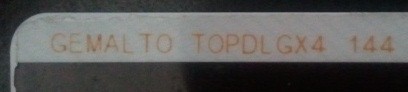
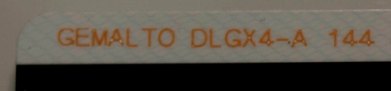
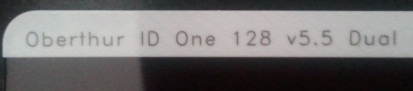
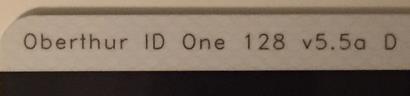
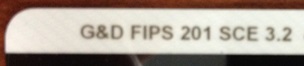
Find
out how to flip card over video
Army users: You
no longer will have to install Windows in a
virtual environment
to be able to sign forms. Go to this page
for specifics
Army
has migrated to Adobe fillable forms. Army Publishing
Directorate began the conversion of the Army's inventory of existing IBM
Lotus forms to PDF-F in FY 2014. Beginning in FY15, Lotus Forms and ApproveIt / eSign
software will no longer be supported. This is great news for Mac users
since Lotus and ApproveIt has never worked for them, however, we have come
to find out that we are still unable to sign the forms.
Article
on how to utilize Windows on your Mac from
Online Tech Tips.com
How to
make a web server think you're using
Internet Explorer

How
to configure Firefox on your Snow Leopard Mac video (using CAC key)
How
to configure Firefox on your Mac (using Cool key)
You can
download the
dod_configuration-1.3.3.xpi Firefox installation file from
Forge.mil (but
you may not need it)
The following
information is provided for your situational awareness while setting up your CAC on your Mac. It is updated as additional
information is available and your input is appreciated for solutions not
outlined here. Installation
instructions can be found below.
ActivClient
is a middleware program used by the DoD to facilitate the communication between
your Windows computer and your Common Access Card. It was
offered for the “Tiger” release (Mac OS X 10.4.X) and is not compatible
with Snow Leopard. The use of ActivClient is not
supported here for the Mac OS, as it is not required and
won't work with
Snow Leopard (10.6.8).
NOTICE: The links to vendors / products is an attempt to save you time
searching for the specific item, by linking you directly to the item shown.
You will notice I have multiple [when I can find] vendors to choose from.
I have no personal preference as to who you decide to purchase from. I
am not endorsing any particular product, I'm merely letting you know what
works and where you can get it from.
Windows on
your Mac (You MUST have an
Intel
processor, it will NOT work with a PPC processor):
We know you have made a conscious decision to “be a Mac,” but the Government
has not, and therefore the easiest solution for some problems, such as:
Digitally signing PDF-F forms or with Lotus Forms and eSign, some websites
(including digitally signing / encrypting emails in OWA), is to use
Windows
through a Virtual Machine, such as Parallels
(discounted
prices),
VMware
Fusion (Parallels vs. VMware
comparison), or
VirtualBox or through Apple’s native
Boot Camp (alternate
guide).
This will require you to have a licensed copy of Microsoft Windows. With these
programs, you can
install the ActivClient,
Adobe Reader, Lotus Forms, and
ApproveIt software and
also utilize all
the DoD tools from your Mac. The benefit of the Virtual Machines over Boot
Camp is that it will allow you to run Windows as an additional program
(without restarting your computer) and keep OS X running the entire time.
Discounted
prices on these programs below can be viewed
here
NOTE: If
your CAC reader is not being recognized by your
virtual Windows, follow this guidance:
VMware
Fusion: From the the menu bar, select
Virtual Machine,
then USB.
Find your CAC reader and select it.
Parallels Desktop
- (In Coherent mode): Click the red parallel lines in the menu bar, Select
Devices,
USB, find your CAC reader and select it.
Parallels
Desktop - (Not in Coherent mode): Simply
plug your reader into the computer and select whether you want to use it in
Mac or Windows. You may also need to click the word Devices
in the top row, USB, then your CAC reader.
VirtualBox:
Click the word Devices (at the top of the screen), then USB Devices,
and select your CAC reader. When you want to use it on your Mac, go
to the same location and remove the checkmark. If you receive
an error message when trying to select the reader here follow these
instructions:
* In the VirtualBox GUI, click on USB (small icon in the list of devices).
* Then check "Enable USB Controller" and "Enable USB EHCI controlling."
* Lowest on the beach, you'll see a list of icons to your right. Check
first. A box appears "a new filter". Check it.
* By
clicking on the icon below, representative of a USB plug with a +, you'll
see a list of drivers.
* Select the one that corresponds
to your USB drive. Check it added in the filter window.
DTS
(Defense Travel System) See the
DTS specific page
for support
DCO
(Defense Connect Online) works with your Snow Leopard Mac since the
servers have been updated. Make sure you select the check box
to Allow all applets from "www.dco.dod.mil"
with this signature and select Allow. You "should" now see a Java
based screen with logon / password, or CAC PIN. Select the CAC PIN
option.
CAC Readers:
With a variety of CAC readers available today there are also a variety of
issues. The SCR series of CAC readers work very well. The SCR-331 reader may
need a Firmware Update. See
several models of USB CAC readers
here. You will see a
small note on some of the readers to show you how to make them
compatible with your Mac.
Here is a
web page
that lists all known CAC readers and whether they are supported, should
work, or unsupported with the Mac OS'.
HQDA Citrix access
information for your Mac
How to guide
DoD
Root certificates on your Mac only go up to CA 26, so, if your CAC has a CA
between 27-32 you need to install all of the CAs 27-32 and CA Email
27-32. You can download the
AllCerts.zip file,
then double click each certificate in the folder.
Outlook Web
Access / App (OWA): The use of
OWA on Mac sometimes times
out. Beware that when using OWA on your Mac if you are
inactive on the primary window, for example: the Inbox, while replying to an email,
the browser may time out. On a Windows computer ActivClient
(middleware) software maintains communications with the server and
re-requests validation of your credentials. On a Mac this is not so,
Safari will respond to a direct request for validation of your credentials,
however it will not re-request that you verify as the server requires.
Be sure that prior to selecting the Send button that you copy your work to
the clipboard as you will most likely have to restart Safari and log back
in. You also will not be able to digitally sign / encrypt / decrypt
emails since the S/MIME software is proprietary for Microsoft Internet
Explorer (32 bit) only, therefore, it doesn't exist for a Mac.
Internet Explorer Emulation (NOT applicable
to OWA): If you visit a website with your Mac that states it
can only be accessed via Internet Explorer, or some web pages simply
won't work while using your CAC with Safari, try this:
Open Safari, Click on the word Safari (in the bar at the top), select
Preferences..., Advanced, click the Show Develop menu in
the menu bar box.
Close Advanced screen. Now to emulate IE, click on the word
Develop (at the top), click User Agent, then choose Internet Explorer
9, 10, or 11
Air Force
Users look here for some
helpful information
Navy Users look
here for some specific
information
NOTE3:
If you previously had Leopard installed on this
computer and were using
your CAC. You will need to go into the Login section of Keychain
access and remove all of the URLs you manually added.
.
If you are still having problems,
contact us
|