STEP 4-Coast Guard: COAST GUARD ACTIVCLIENT INSTALLATION ASSISTANCE PAGE (Everyone other than Coast Guard look here) |
||||||||||||||
YOU CAN USE YOUR CAC WITH WINDOWS 10
YOU CAN ALSO USE YOUR CAC WITH WINDOWS 8 / 8.1
Coast Guard users can follow the below link for ALL necessary Guides, Software, Etc. to install Remote VDI onto your personal Windows 64-bit computer. You must obtain approval from your Command to utilize this service and someone from the unit with funding authority must submit a Remedy ticket.
The software package on this page includes Install Root 5.5 for the certs, ActivClient 7.2.1, and VMware Horizon Client.
https://uscg.sharepoint-mil.us/sites/C5ISC-ISD-SVR-VDI/SitePages/Home.aspx
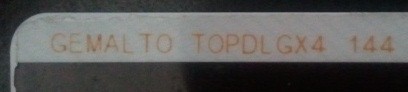
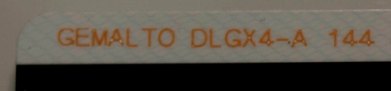
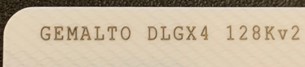
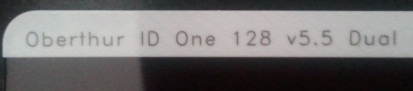
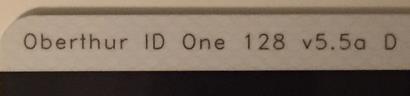
A guide to help figure out which CAC you have Read more about the older CACs and replacing them
|
||||||||||||||
If you have questions or suggestions for this site, contact Michael J. Danberry
Last Update or Review: Sunday, 03 April 2022 12:51 hrs
The following domain
names all resolve to the same website: ChiefsCACSite.com,
CommonAccessCard.us, CommonAccessCard.info, & ChiefGeek.us
|



 On 2
On 2  If you are a Mac
user needing to download VMware Horizon, please
If you are a Mac
user needing to download VMware Horizon, please